# Strategy Order
## Buy Strategy Type(Upcoming)
{% tabs %}
{% tab title="Bargain Hunting" %}
> **When a user wants to buy tokens at the lowest price, they can set up order conditions in the order window using the "Bargain Hunting" option. The "Bargain Hunting" option allows users to set a specific price level(trigger price), and PNIX DEX will execute the order when the token's market price reachs(market buy) or falls(limit order) below trigger price. This option helps users find potential opportunities to buy tokens at a lower price than the current market price.**\
> \ **So, "bargain hunting" option to uesers, providing information on how they can use it to set a specific trigger price for buying tokens at a lower price than the current market price. The usage of "market buy" and "limit buy" clarifies the different scenarios when the order will be executed.**
{% hint style="success" %}
Example: Consider a user who wants to buy token A. The current market price is 1.5 WEMIX$ per token, but a user expects the price to drop to WEMIX$ 1.0 in the future. They wish to place an buy order for 100,000 tokens at WEMIX$ 1.0 each.
In this example, if an order of 100,000 tokens at $1.0 is placed using market buy, it will be reflected in the order book and may potentially impact the current price. However, by employing the "Bargain-Hunting" strategy, this order of 100,000 tokens at $1.0 will not be executed until the market price reaches the trigger price of $1.0. As a result, the order will not appear on the order book until the trigger price is met, thereby aiding the target purchase. This strategy helps users buy at a lower price than the current market price.
{% endhint %}
* Select 'Buy' at the top of the order window.
* Select 'Limit' or 'market' as the order price type.
* Select 'Strategy' and choose 'Bargain Hunting.'
* The trigger price is the price at which the order is activated and must be set lower than the current price.
* If you select 'Limit', enter the limit price for when the Trigger Price is reached. However, in situations where there is high price volatility when the monitoring price is triggered, or if there is insufficient trading volume, the order may not be executed.
* If you select 'market', your order quantity will be executed immediately at the current market price when the trigger price is reached. However, if there are not enough trading volume available for sale when the trigger price is activated, the order may not be executed.
* You can enter 'Amount'(the quantity) or adjust it using the gauge bar. 'Total'(=Amount \* Price + Expected Fee) is calculated and displayed automatically.
* If you prefer to buy based on 'Total', select dropdown box and change it to 'Total.'
* After selecting 'Total,' you can directly enter 'Total' to buy or adjust it using the gauge bar. 'Amount' (Excluding Expected Fee) is calculated and displayed automatically.
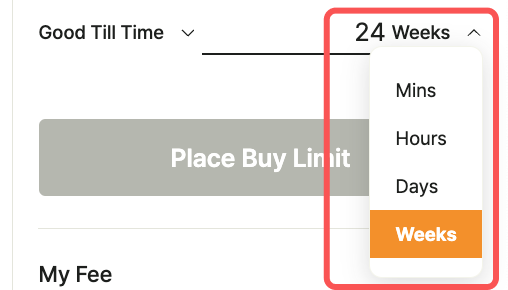
* Check [the order validity period option(TIF, Time In Force)](/decentralized-exchange/order-system/limit-market-order.md#order-option). By default, 24 weeks are set, and the user can modify it within the 24-week period.
* Select 'Place Buy Bargain Hunting Limit order (submit trade order to the order book).'
* Check the order information and select 'Confirm.'
* Proceed with signing the wallet.
* When the signature is completed in the wallet, the order submission is complete.
{% endtab %}
{% tab title="Buying Spree" %}
> **The "Buying Spree" option allows users to take advantage of a market that is experiencing a constant uptrend in prices. If a user believes that the market price will continue to rise for a period of time in the future, they can use the "Buying Spree" option to place a buy order at the current market price or the trigger price, which they believe is the lowest price compared to what it may be in the future.**
>
> **With the "Buying Spree" option, the user's buy order will be executed immediately at the current market price or the limit price, allowing them to take advantage of the upward trend without delay. This option is beneficial for users who wish to secure their desired tokens at what they perceive to be the most favorable price during an ongoing uptrend.**
{% hint style="success" %}
Example: The "Buying Spree" option is used when a user considers buying tokens and believes that the current market price is $1.5. However, he anticipates that if the price of tokens rises to $1.7, it will follow an upward trend and eventually reach $2.0. In this case, a user can use the "Buying Spree" option to place a buy order at the trigger price he believes is the lowest compared to the potential future price. By doing so, he aims to take advantage of the upward trend and secure the desired token at a favorable price.
\
If user places a market order at $1.7, which is higher than the current market price of $1.5, the coins will be purchased at the current market price. To avoid this situation and take advantage of potential price increases, user can utilize the "Buying Spree" strategy. With this strategy, user can set a trigger price of $1.65, so that an order is created only when the price surpasses the current market price. Using this strategy is beneficial as it allows user to maximize profits in case the token price rises higher than expected.
{% endhint %}
* Select 'Buy' at the top of the order window.
* Select 'Limit' or 'market' as the order price type.
* Select 'Strategy' and choose 'Buying Spree.'
* The trigger price is the price at which the order is activated and must be set higher than the current price.
* If you select 'Limit', enter the limit price for when the Trigger Price is reached. However, in situations where there is high price volatility when the monitoring price is triggered, or if there is insufficient trading volume, the order may not be executed.
* If you select 'market', your order quantity will be executed immediately at the current market price when the trigger price is reached. However, if there are not enough trading volume available for sale when the trigger price is activated, the order may not be executed.
* Basically for market buy orders, 'Total' is the default setting, allowing you to directly enter 'Total' to buy or adjust it using the gauge bar. 'Amount' (Excluding Expected Fee) is calculated and displayed automatically.
* If you prefer to buy based on 'Amount', select dropdown box and change it to 'Amount.' You can enter 'Amount'(the quantity) or adjust it using the gauge bar. 'Total'(=Amount \* Price + Expected Fee) is calculated and displayed automatically.
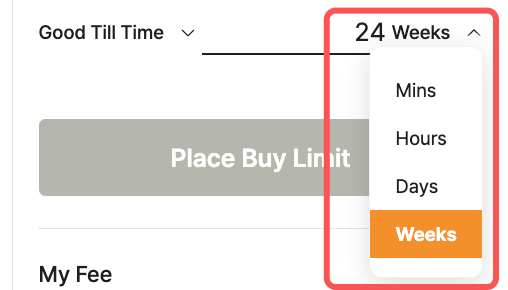
* Check [the order validity period option(TIF, Time In Force)](/decentralized-exchange/order-system/limit-market-order.md#order-option). By default, 24 weeks are set, and the user can modify it within the 24-week period.
* Select 'Place Buy Buying Spree Market order (submit trade order to the order book).'
* Check the order information and select 'Confirm.'
* Proceed with signing the wallet.
* When the signature is completed in the wallet, the order submission is complete.
{% endtab %}
{% endtabs %}
## Sell Strategy Type(Upcoming)
{% tabs %}
{% tab title="Stop Loss" %}
> **The "Stop Loss" option is designed for users who are concerned about potential significant losses when the market price of a token is experiencing sharp fluctuations. With the "Stop Loss" option, users can set a specific price level, known as the "trigger price," at which they want to trigger the execution of a sell order.**
>
> **The "Stop Loss" option provides an essential risk management tool, enabling users to protect their investment from unexpected market volatility and minimize potential losses by selling their tokens at a predetermined price level. It is a valuable feature for users who wish to maintain control over their risk exposure while participating in the market.**
{% hint style="success" %}
Example: Let's consider a scenario where a user purchased a token at $1.4, and its current market price is $1.5. If users uses a limit sell at $1.1, which is below the current market price, the token will be sold immediately at $1.5.
However, utilizing the stop-loss function allows the user to set a trigger price lower than the current market price. By doing so, the sell order will only be executed when the market price reaches the trigger price. For instance, if user decide to employ the stop-loss function and set the trigger price at $0.8, the sell order will be executed only when the token's price reaches $0.8.
Using the stop-loss function can be advantageous as it enables user to protect their investment by triggering the sale at a predetermined price level. It provides a risk management strategy to mitigate potential losses during periods of sharp market fluctuations.
{% endhint %}
* Select 'Sell' at the top of the order window.
* Select 'Limit' or 'market' as the order price type.
* Select 'Strategy' and choose 'Stop Loss.'
* The trigger price is the price at which the order is activated and must be set lower than the current price.
* If you select 'Limit', enter the limit price for when the Trigger Price is reached. However, in situations where there is high price volatility when the monitoring price is triggered, or if there is insufficient trading volume, the order may not be executed.
* If you select 'market', your order quantity will be executed immediately at the current market price when the trigger price is reached. However, if there are not enough trading volume available for sale when the trigger price is activated, the order may not be executed.
* You can enter 'Amount'(the quantity) or adjust it using the gauge bar. 'Total'(=Amount \* Price + Expected Fee) is calculated and displayed automatically.
* If you prefer to buy based on 'Total', select dropdown box and change it to 'Total.'
* After selecting 'Total,' you can directly enter 'Total' to buy or adjust it using the gauge bar. 'Amount' (Excluding Expected Fee) is calculated and displayed automatically.
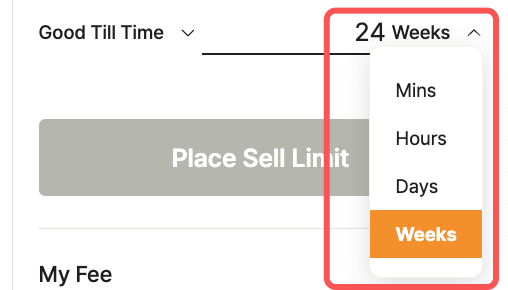
* Check [the order validity period option(TIF, Time In Force)](/decentralized-exchange/order-system/limit-market-order.md#order-option). By default, 24 weeks are set, and the user can modify it within the 24-week period.
* Select 'Place Sell Stop Loss Limit order (submit trade order to the order book).'
* Check the order information and select 'Confirm.'
* Proceed with signing the wallet.
* When the signature is completed in the wallet, the order submission is complete.
{% endtab %}
{% tab title="Take Profit" %}
> **The "Take Profit" option is designed to help users secure their profits at a desired price level during periods of volatile market fluctuations. When a user expects the market price of a token to rise significantly and wants to lock in their profits at a specific level, they can utilize the "Take Profit" function in the order window.**
{% hint style="success" %}
Example: Let's say a user purchased a token at $1.0, and the current market price of the token is $1.5. If the user sets a limit sell order at $1.3, which is under the current market price, the token will be sold immediately at $1.5, realizing a profit of $0.5 per token.
However, by using the "Take Profit" function, the user can set a trigger price at a level above the current market price, such as $2.0. In this case, the sell order will only be executed when the market price reaches the trigger price of $2.0. By doing so, the user can lock in a profit of $1.0 per token, which is the difference between the trigger price and the limit price.
Using the "Take Profit" function enables users to protect their profits and secure gains at a predetermined level. It provides a valuable tool for risk management, allowing users to preserve their expected profits while minimizing the risk of potential losses during market fluctuations.
{% endhint %}
* Select 'Sell' at the top of the order window.
* Select 'Limit' or 'market' as the order price type.
* Select 'Strategy' and choose 'Take Proft.'(Strategy)
* The trigger price is the price at which the order is activated and must be set higher than the current price.
* If you select 'Limit', enter the limit price for when the Trigger Price is reached. However, in situations where there is high price volatility when the monitoring price is triggered, or if there is insufficient trading volume, the order may not be executed.
* If you select 'market', your order quantity will be executed immediately at the current market price when the trigger price is reached. However, if there are not enough trading volume available for sale when the trigger price is activated, the order may not be executed.
* You can enter 'Amount'(the quantity) or adjust it using the gauge bar. 'Total'(=Amount \* Price + Expected Fee) is calculated and displayed automatically.
* If you prefer to buy based on 'Total', select dropdown box and change it to 'Total.'
* After selecting 'Total,' you can directly enter 'Total' to buy or adjust it using the gauge bar. 'Amount' (Excluding Expected Fee) is calculated and displayed automatically.
* Check [the order validity period option(TIF, Time In Force)](/decentralized-exchange/order-system/limit-market-order.md#order-option). By default, 24 weeks are set, and the user can modify it within the 24-week period.
* Select 'Place Sell Limit (submit trade order to the order book).'
* Check the order information and select 'Confirm.'
* Proceed with signing the wallet.
* When the signature is completed in the wallet, the order submission is complete.
{% endtab %}
{% endtabs %}
---
# Agent Instructions: Querying This Documentation
If you need additional information that is not directly available in this page, you can query the documentation dynamically by asking a question.
Perform an HTTP GET request on the current page URL with the `ask` query parameter:
```
GET https://docs-en.pnix.exchange/decentralized-exchange/step-by-step-user-guide/trade-order/strategy-order.md?ask=
```
The question should be specific, self-contained, and written in natural language.
The response will contain a direct answer to the question and relevant excerpts and sources from the documentation.
Use this mechanism when the answer is not explicitly present in the current page, you need clarification or additional context, or you want to retrieve related documentation sections.