# Approve Assets

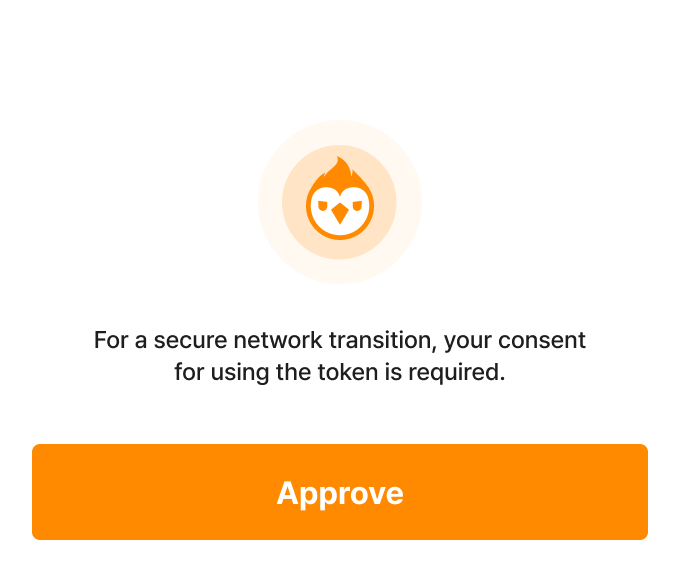
After connecting the PLAY Wallet to PNIX DEX, whether you want to transfer tokens through the bridge or trade individual tokens, each token must go through the "Approve" step.

{% tabs %}
{% tab title="Using the bridge " %}

* Please select "Bridge" located in the center of the screen.

<figure><img src="/files/QbGWuLZvMEXxrZUVzEPM" alt=""><figcaption></figcaption></figure>

* Select the tokens you wish to transfer from another chain. Tokens that are being transferred for the first time will be displayed with an "Approve" option.

<figure><img src="/files/n9WzD0hPAqWxRAdfHDno" alt="" width="375"><figcaption></figcaption></figure>

* Please select "Approve".

<figure><img src="/files/lYZ4rBrOM08coMF7mcGZ" alt="" width="340"><figcaption></figcaption></figure>

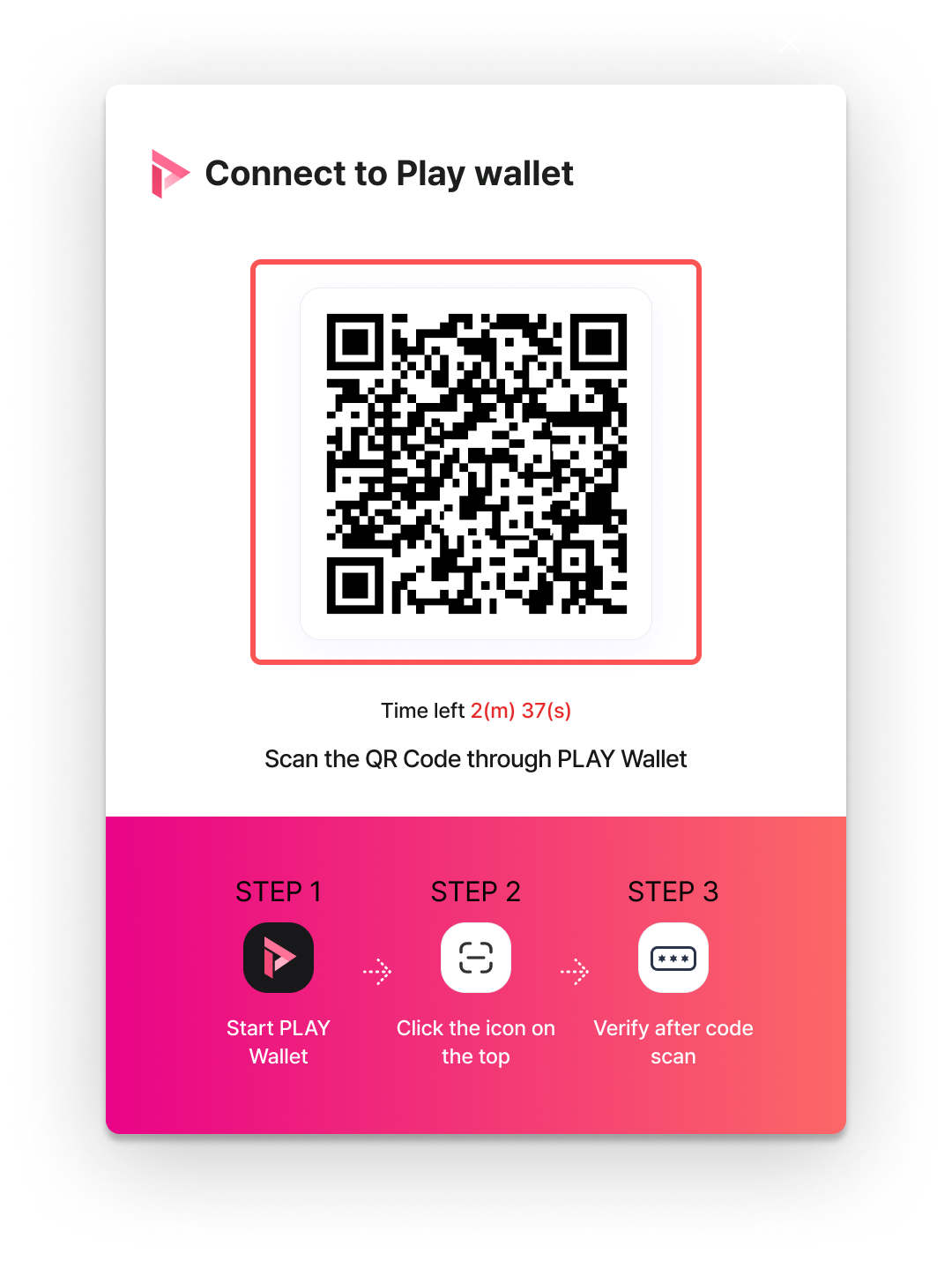
* Once you've selected "Approve," proceed to sign the PLAY Wallet.

<div align="center"><figure><img src="https://files.gitbook.com/v0/b/gitbook-x-prod.appspot.com/o/spaces%2FyLrMYXMQNX1FMIhwXQTK%2Fuploads%2Fbavp1qwhCDKrv3lZhNuD%2FQRNONE.png?alt=media&#x26;token=d8cf5913-d71c-49f2-a084-4bf25b72350e" alt="" width="375"><figcaption></figcaption></figure></div>

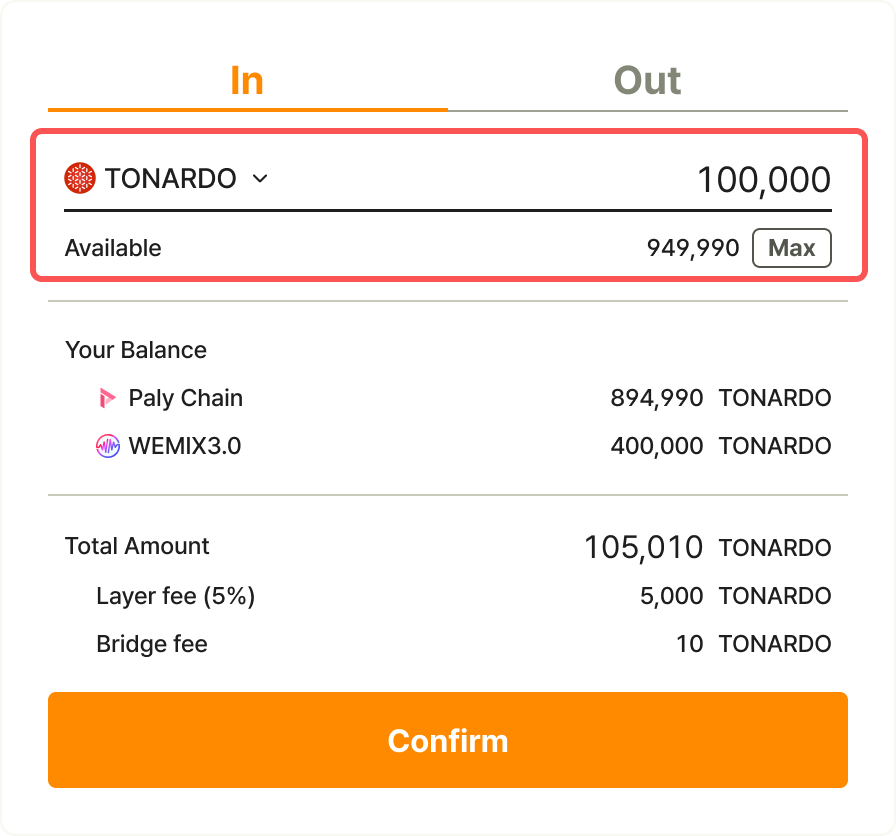
* Once the wallet signing is complete, the status of the token to be transferred will be displayed as "Confirm."

<figure><img src="https://files.gitbook.com/v0/b/gitbook-x-prod.appspot.com/o/spaces%2FyLrMYXMQNX1FMIhwXQTK%2Fuploads%2FUV9KB1X2ln1T0BL2WmVW%2Fbridge_in_3.png?alt=media&#x26;token=8874c11a-d5e6-4762-b8de-0afc191aef04" alt="" width="375"><figcaption></figcaption></figure>

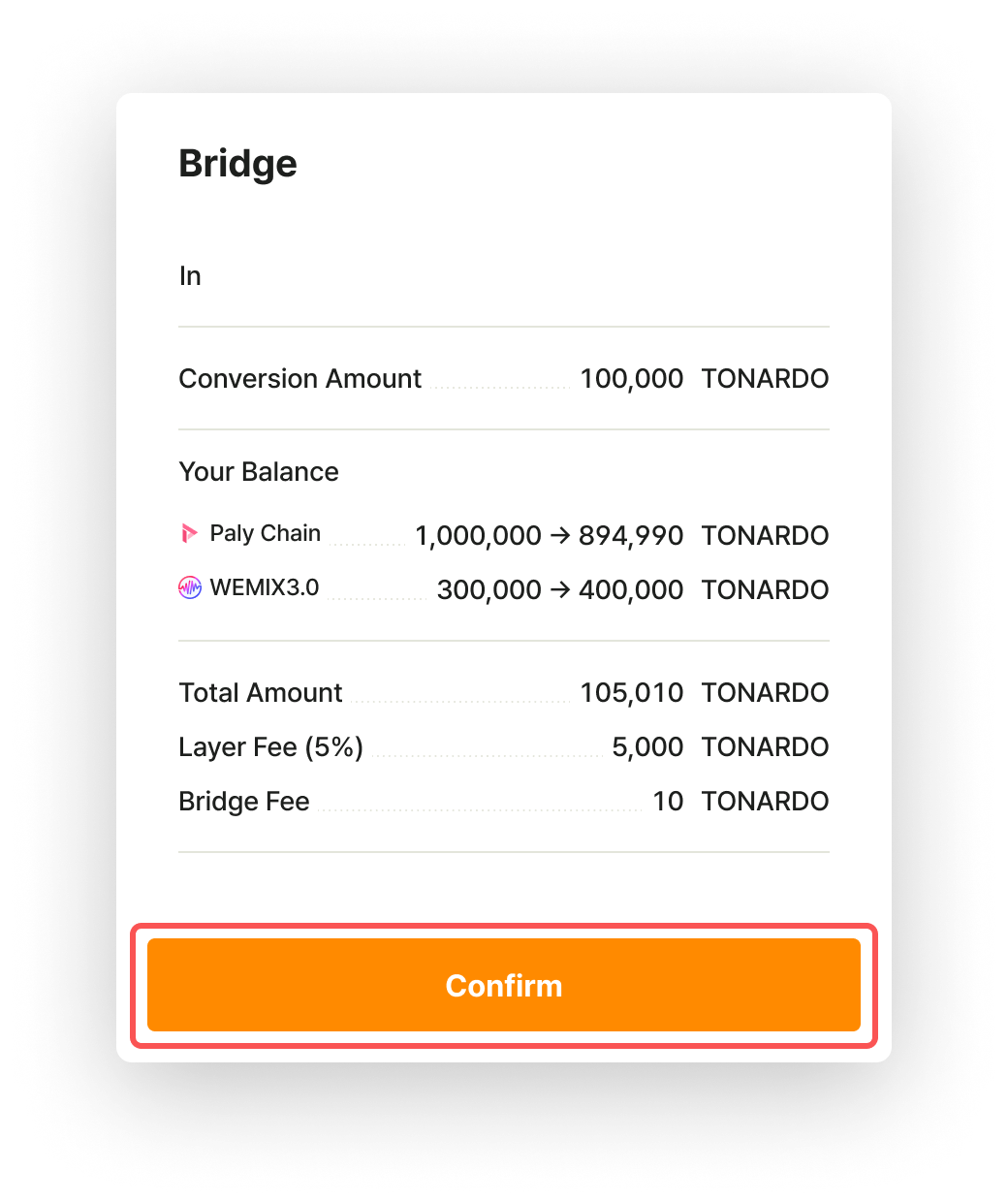
* After selecting "Confirm," please review the contents of the token to be transferred.

<figure><img src="https://files.gitbook.com/v0/b/gitbook-x-prod.appspot.com/o/spaces%2FyLrMYXMQNX1FMIhwXQTK%2Fuploads%2FIC4Q5vGG0ZWIYVRwuXV0%2Fbridge_in_4.png?alt=media&#x26;token=f85a1228-c375-4b33-9927-ba0a5c65a659" alt="" width="375"><figcaption></figcaption></figure>

* Once you've selected "Confirm," proceed with signing the wallet.

<figure><img src="https://files.gitbook.com/v0/b/gitbook-x-prod.appspot.com/o/spaces%2FyLrMYXMQNX1FMIhwXQTK%2Fuploads%2Fbavp1qwhCDKrv3lZhNuD%2FQRNONE.png?alt=media&#x26;token=d8cf5913-d71c-49f2-a084-4bf25b72350e" alt="" width="375"><figcaption></figcaption></figure>

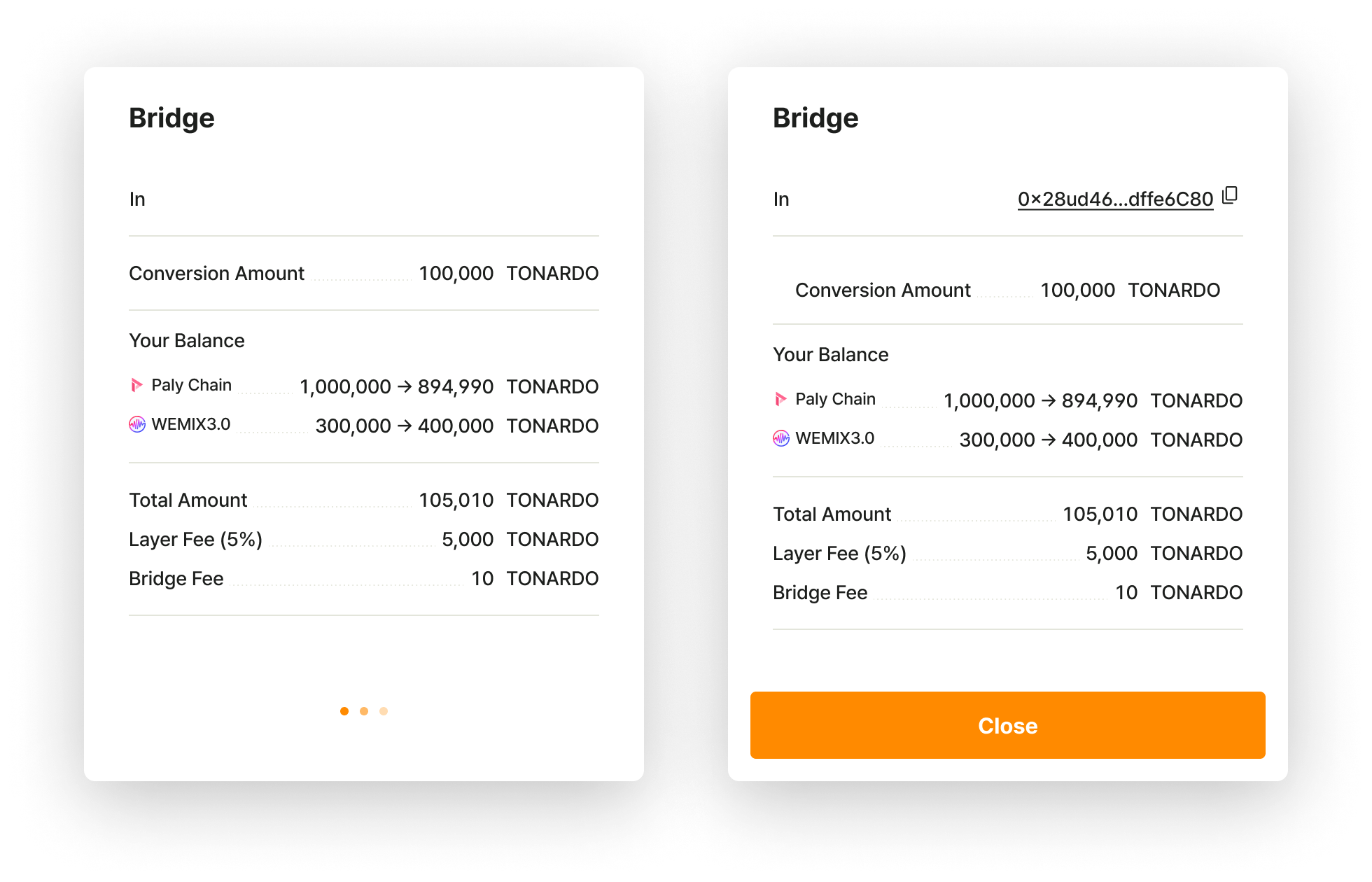
* Once the signing is complete, the transaction will proceed.

<figure><img src="https://files.gitbook.com/v0/b/gitbook-x-prod.appspot.com/o/spaces%2FyLrMYXMQNX1FMIhwXQTK%2Fuploads%2Fv11i2sTWgdqbeYy1aOnP%2Fbridge_in_5.png?alt=media&#x26;token=c0fefa3f-a51b-4489-99c6-aebd44537a73" alt=""><figcaption></figcaption></figure>
{% endtab %}

{% tab title="Order" %}

* Please select "Place an Order" in the order section.

<div align="center"><figure><img src="/files/YBqPBV7IZlsZN2uICKwR" alt="" width="323"><figcaption></figcaption></figure></div>

* Tokens that are being ordered for the first time will be displayed with an "Approve" option.

<div align="center"><figure><img src="https://files.gitbook.com/v0/b/gitbook-x-prod.appspot.com/o/spaces%2F3JPSgTGnCJCloZfSowol%2Fuploads%2FSJS2BWDSPwYTroUNTLli%2FApprove_Modal.png?alt=media&#x26;token=736da288-28c6-4784-a62a-ba4af439dfb0" alt="" width="375"><figcaption></figcaption></figure></div>

* Once you've selected "Approve," proceed to sign the PLAY Wallet.

<figure><img src="/files/nf5vhjTt0jqIiEoZkdX0" alt="" width="375"><figcaption></figcaption></figure>

* Proceed with the signature for "Approve" by referring to the signature procedure of your wallet.
* If "Approve" is processed successfully, an order confirmation pop-up will be displayed.

<div align="center"><figure><img src="/files/Z4UV2Cc9mjHpLeEqpBQT" alt="" width="390"><figcaption></figcaption></figure></div>

* Previous orders will be displayed in the order confirmation pop-up, and the wallet signing will proceed if approved.

<div align="center"><figure><img src="/files/nf5vhjTt0jqIiEoZkdX0" alt="" width="375"><figcaption></figcaption></figure></div>

* When the wallet signature is completed, the order transaction will be successfully processed.

<figure><img src="/files/iN3gxD1VtgTcyMszZ57Z" alt=""><figcaption></figcaption></figure>
{% endtab %}
{% endtabs %}


---

# Agent Instructions: Querying This Documentation

If you need additional information that is not directly available in this page, you can query the documentation dynamically by asking a question.

Perform an HTTP GET request on the current page URL with the `ask` query parameter:

```
GET https://docs-en.pnix.exchange/decentralized-exchange/step-by-step-user-guide/approve-assets.md?ask=<question>
```

The question should be specific, self-contained, and written in natural language.
The response will contain a direct answer to the question and relevant excerpts and sources from the documentation.

Use this mechanism when the answer is not explicitly present in the current page, you need clarification or additional context, or you want to retrieve related documentation sections.